Transactions
🚨 Important: If you haven't yet connected your brokerage accounts via SheetsFinance then you won't have access to this function, please refer to the Brokerage docs page to get started.
Access the historical transactions from your brokerage account(s) directly in Google Sheets using the SF_BROKERAGE() function. This function allows you to pull in and filter through years of historical transactions data from your connected brokerage accounts.
=SF_BROKERAGE(account, "transactions", metrics, startDate, endDate, txnType, options)accountis the nickname of the brokerage account connection you want to pull data from. You can find the nickname of your connected brokerage accounts from the Brokerage Sidebar in Google Sheets (Extensions > SheetsFinance > Brokerage). You can set custom nicknames for your brokerage accounts, see the Setting Nicknames for Your Brokerage Accounts for more information.typeis the type of data you want to pull in. In this case,"transactions".metricsselects what data you want to pull in. You can leave this blank or set it to"all"to output ALL available transactions metrics. You can also chain together multiple metrics using the&operator, for example"symbol&name&quantity&price". See the full list of available metrics below.startDate[OPTIONAL] is the start date for the transaction data you want to pull in. The date should be in the formatYYYY-MM-DDor reference a date-formatted cell. If omitted the function defaults to the most recent 6 months of historical transactions data.endDate[OPTIONAL] is the end date for the transaction data you want to pull in. The date should be in the formatYYYY-MM-DDor reference a date-formatted cell. If omitted the function defaults to the most recent 6 months of historical transactions data.txnType[OPTIONAL] Allows you to filter by the type of transaction. The available transaction types are outlined below. You can select multiple transaction types by chaining them together using the&operator, for example"BUY&SELL". If omitted, the function will return all transaction types.optionsadjusts the formatting and ordering of the output. The available options are:"NH"- No header row."ob=<metric>"- Order the output by a specific metric, for example"ob=tradeDate"."-"- Reverse the output order. This is especially useful when combined withob, for example"ob=tradeDate&-".
🔥 Hot Tip: You can sort transaction history directly in SF_BROKERAGE() using the options argument. For example, "ob=tradeDate" changes the ordering field and "ob=tradeDate&-" reverses it.
Important:
If either the
startDateorendDateare not provided, the function will return the most recent 6 months of historical transactions data.Both the
startDateandendDatemust be provided if you want to pull in historical transactions data for a specific date range.
Metrics
The metrics available for the "transactions" type are as follows:
"all"- All available transaction data."symbol"- The symbol of the transaction."name"- The name of the transaction."currency"- The currency of the transaction."exchange"- The exchange the transaction is listed on."type"- The type of transaction."amount"- The amount of the transaction."price"- The price of the transaction."units"- The units of the transaction."fee"- The fee of the transaction."fxRate"- The FX rate of the transaction."description"- The description of the transaction."settlementDate"- The settlement date of the transaction."tradeDate"- The trade date of the transaction."institution"- The institution of the transaction.
Transaction Types (txnType)
The available transaction types are:
"BUY"– Asset bought."SELL"– Asset sold."DIVIDEND"– Dividend payout."CONTRIBUTION"– Cash contribution."WITHDRAWAL"– Cash withdrawal."REI"– Dividend reinvestment."INTEREST"– Interest deposited into the account."FEE"– Fee withdrawn from the account."OPTIONEXPIRATION"– Option expiration event."OPTIONASSIGNMENT"– Option assignment event."OPTIONEXERCISE"– Option exercise event."TRANSFER"– Transfer of assets from one account to another.
Examples
🤓 Reminder for the below examples:"alpaca" is the nickname of our example brokerage account, you will need to replace this with the nickname of your own brokerage account.
Example 1: Pulling in the last 6 months of historical transactions data for an account
=SF_BROKERAGE("alpaca", "transactions")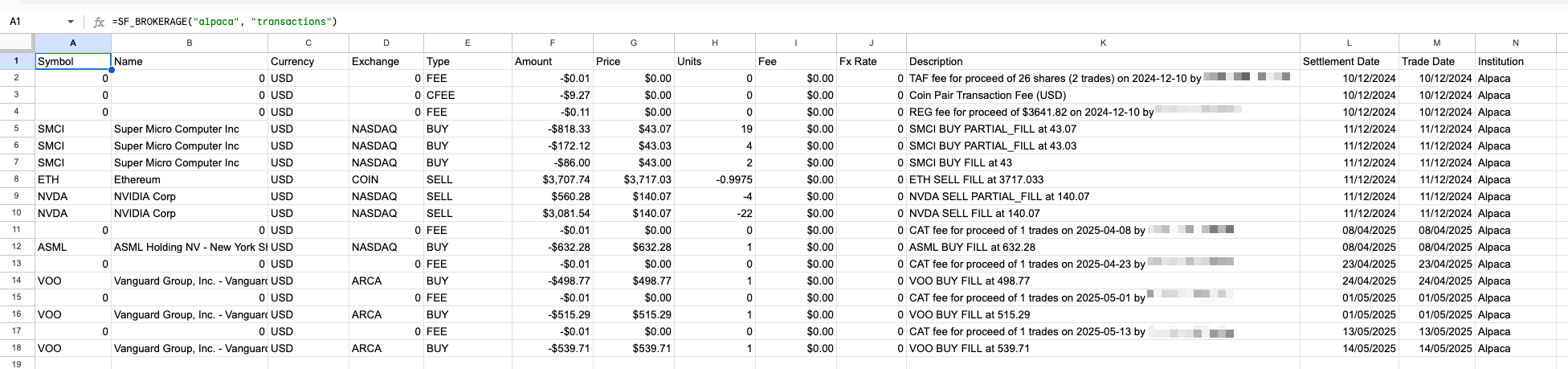
Example 2: Pulling in specific transaction types (e.g. BUY) and selected metrics
=SF_BROKERAGE("alpaca", "transactions", "symbol&name&quantity&price&type", "", "", "BUY")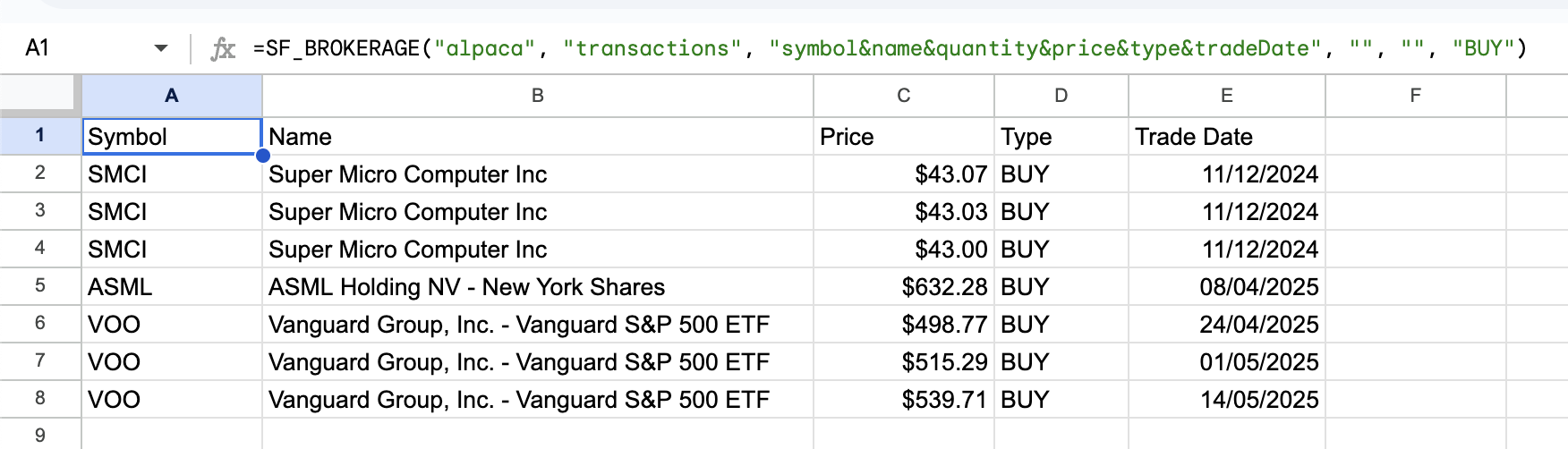
Example 3: Pulling in historical transactions data for a specific date range
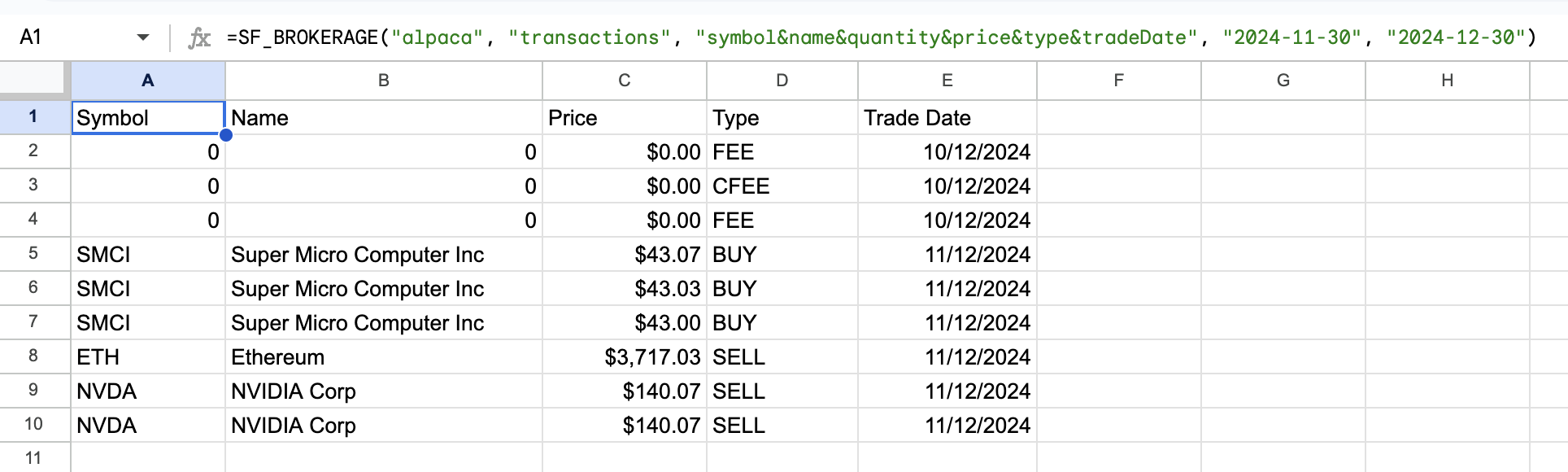
=SF_BROKERAGE("alpaca", "transactions", "symbol&name&quantity&price&type&tradeDate", "2024-11-30", "2024-12-30")