Analyst Ratings
The analysts data type returns a detailed view of individual analyst/broker ratings of a stock. The data extends back to Janurary 2012. As analysts/brokers will frequently re-rate stocks this function will conviniently default to the latest year's unique ratings (no repeats of analysts/brokers) for a stock. You are able to see all re-ratings by selecting "all" or entering a particular analysts/brokers name.
The data is accessed through the SF() function with the following format:
=SF(stock, "analysts", metric, date, options)stockis the either the location of the cell containing the stock ticker symbol or of course the stock ticker symbol itself (e.g.A1or"AAPL"). You can use our Symbol Search to find the correct ticker symbol.metricselects what metrics to display (see options below), display all metrics by leaving blank or using"all". Chain together as many metrics as you'd like using&, e.g.,"date&newGrade".dateis a string in ISO format and can either be just the year (e.g."2020") or the year and month (e.g."2020-01"), or the year, month and day (e.g."2020-01-05"). Other acceptable inputs areallwhich will return the entire history orlatestUniquewhich will return the latest rating of each grading company/analyst removing repeats.optionsadjusts the formatting of the output. There are currently two available options. Set this field to"NH"for no header row and to"-"for reversing the date order of the output data. These options can be chained together with the&operator, for example"NH&-".
The analyst metric options are:
All (
"all")Date (
"date")Grading Company (
"gradingCompany")Previous Rating (
"previousGrade)New Grade (
"newGrade")
IMPORTANT:
Both
metricanddateare optional and can be left out which will default to returning the latest year of data.The
analystdata type always returns a multi-cell array.
Examples
Example 1 - Latest year of analyst ratings
=SF("AAPL", "analysts")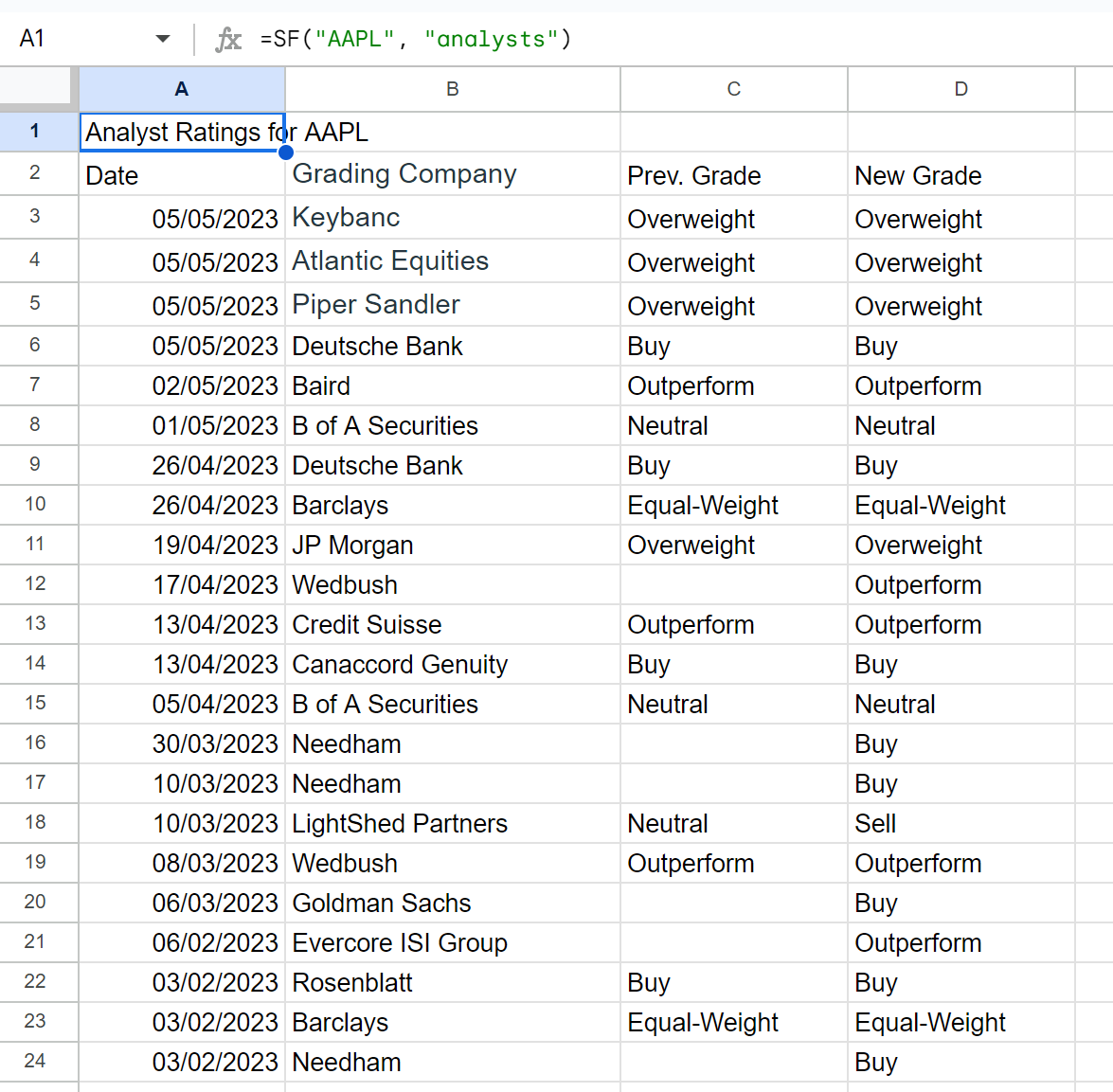
Example 2 - Display several selected metrics for only 2022
=SF("AAPL", "analysts", "date&gradingCompany&newGrade", "2022")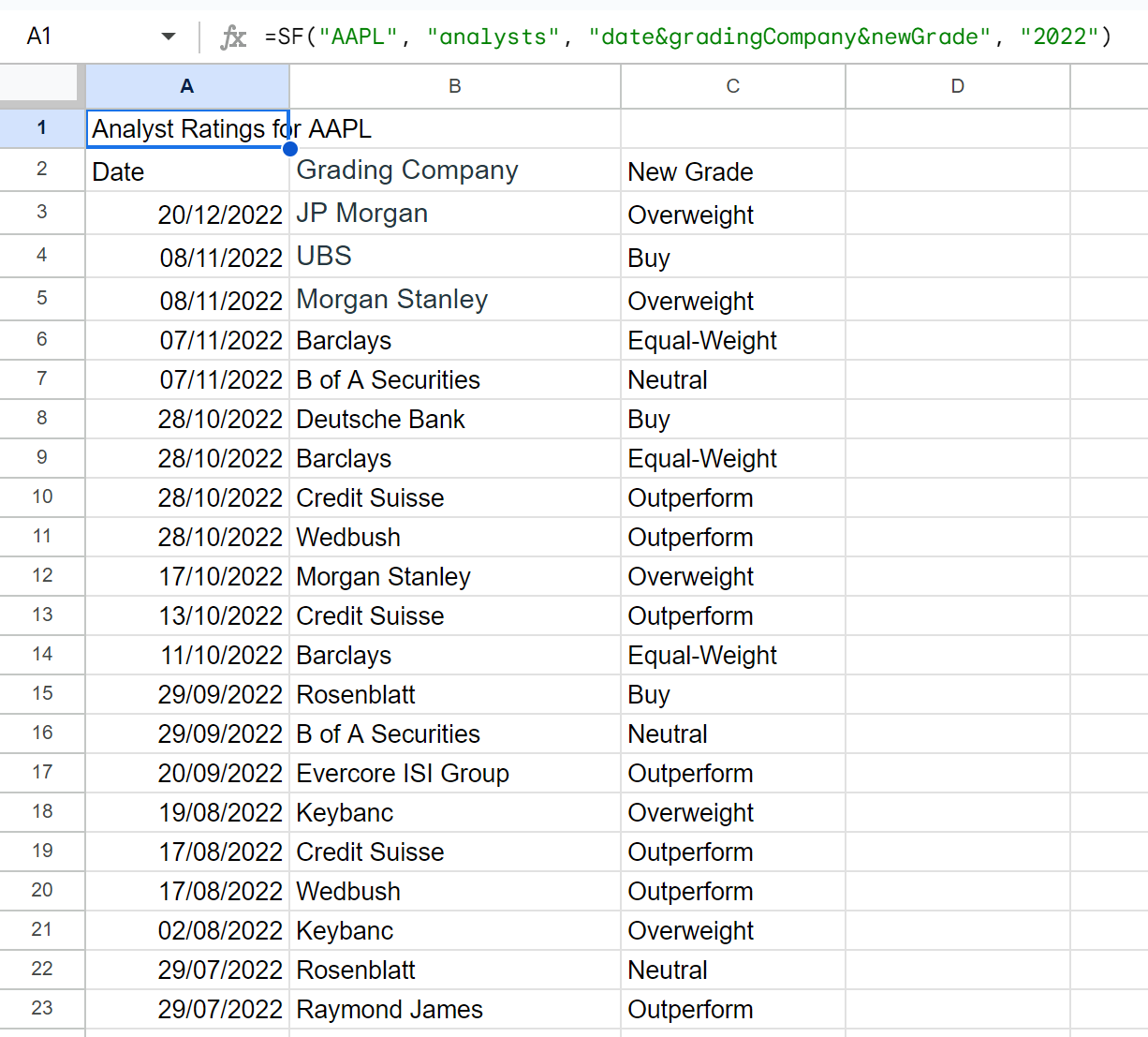
Example 3 - All metrics, latest unique gradings
=SF("AAPL", "analysts", "all", "latestUnique")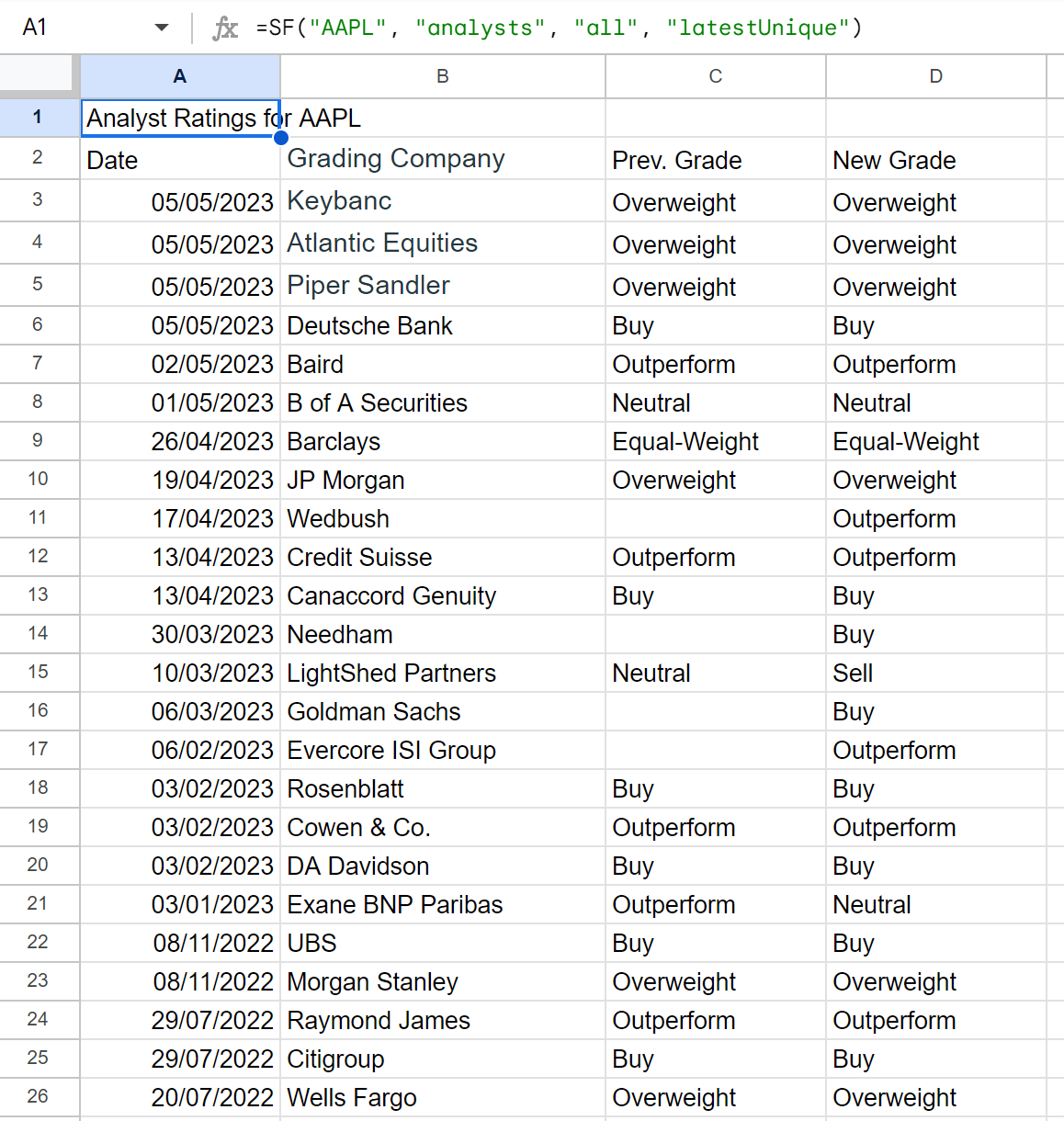
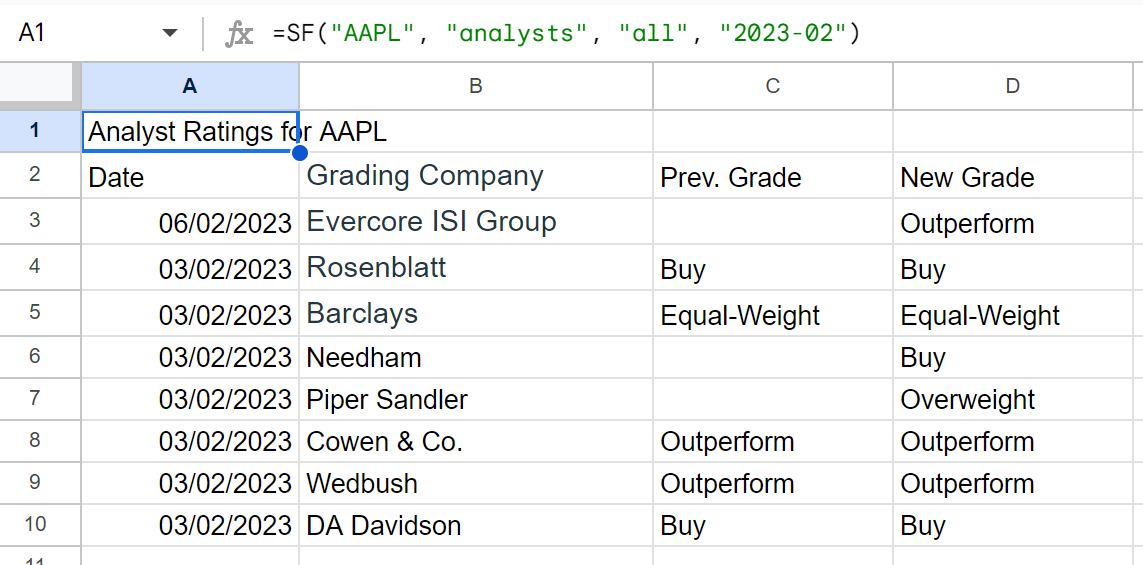
Example 4 - All metrics, specific month
=SF("AAPL", "analysts", "all", "2023-02")