
Function Generator
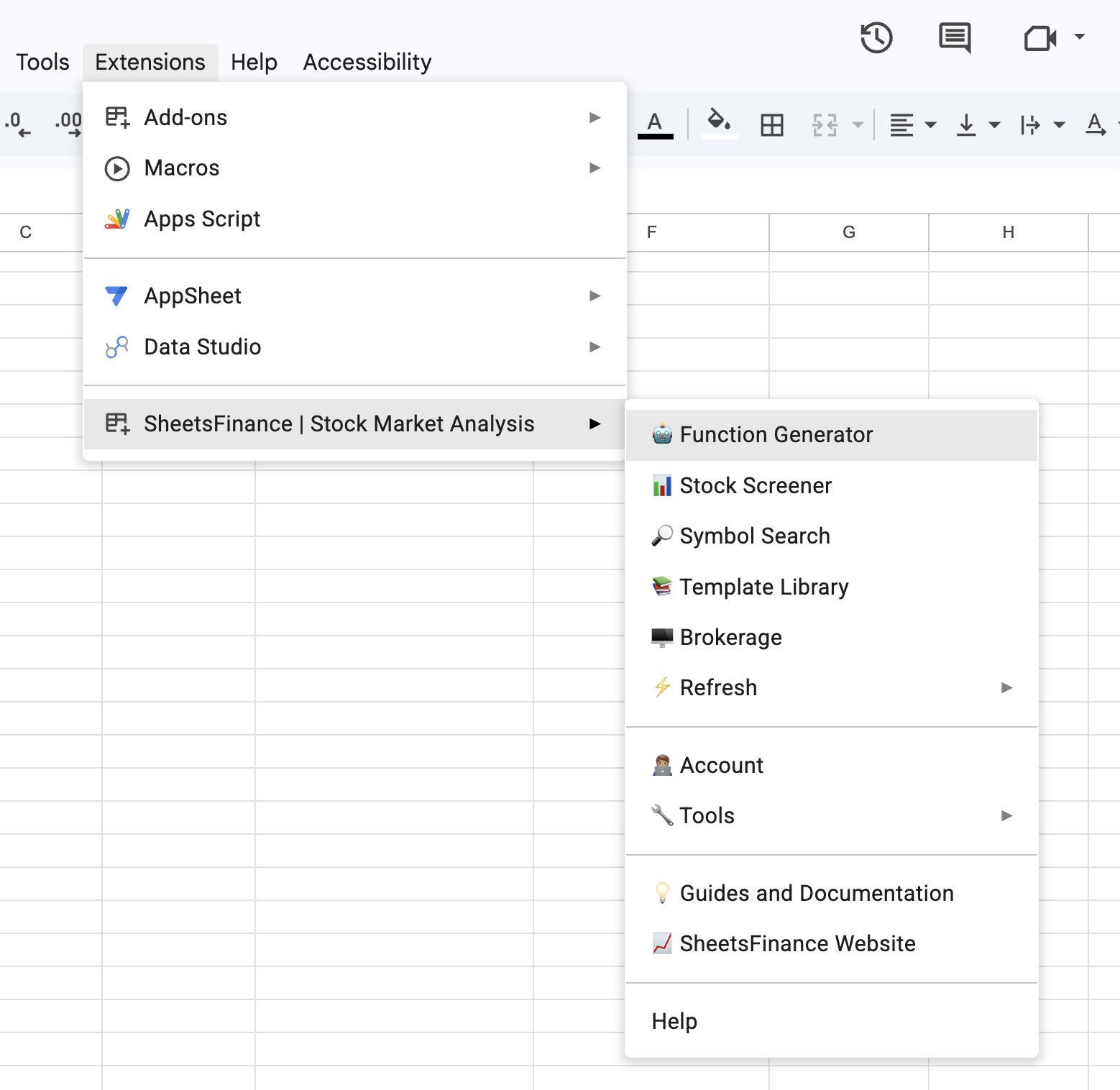
The Function Generator is what makes SheetsFinance so easy to use! It automatically builds and generates all our functions for you. Not only that, but you can use it to search through the vast amount of financial data available on SheetsFinance. The Function Generator opens as a sidebar in Google Sheets and is accessed via the 'Extensions' menu (Extensions > SheetsFinance > Function Generator). Once you've chosen all the parameters click Generate and the function will be automatically inserted into your Sheet for you 🚀
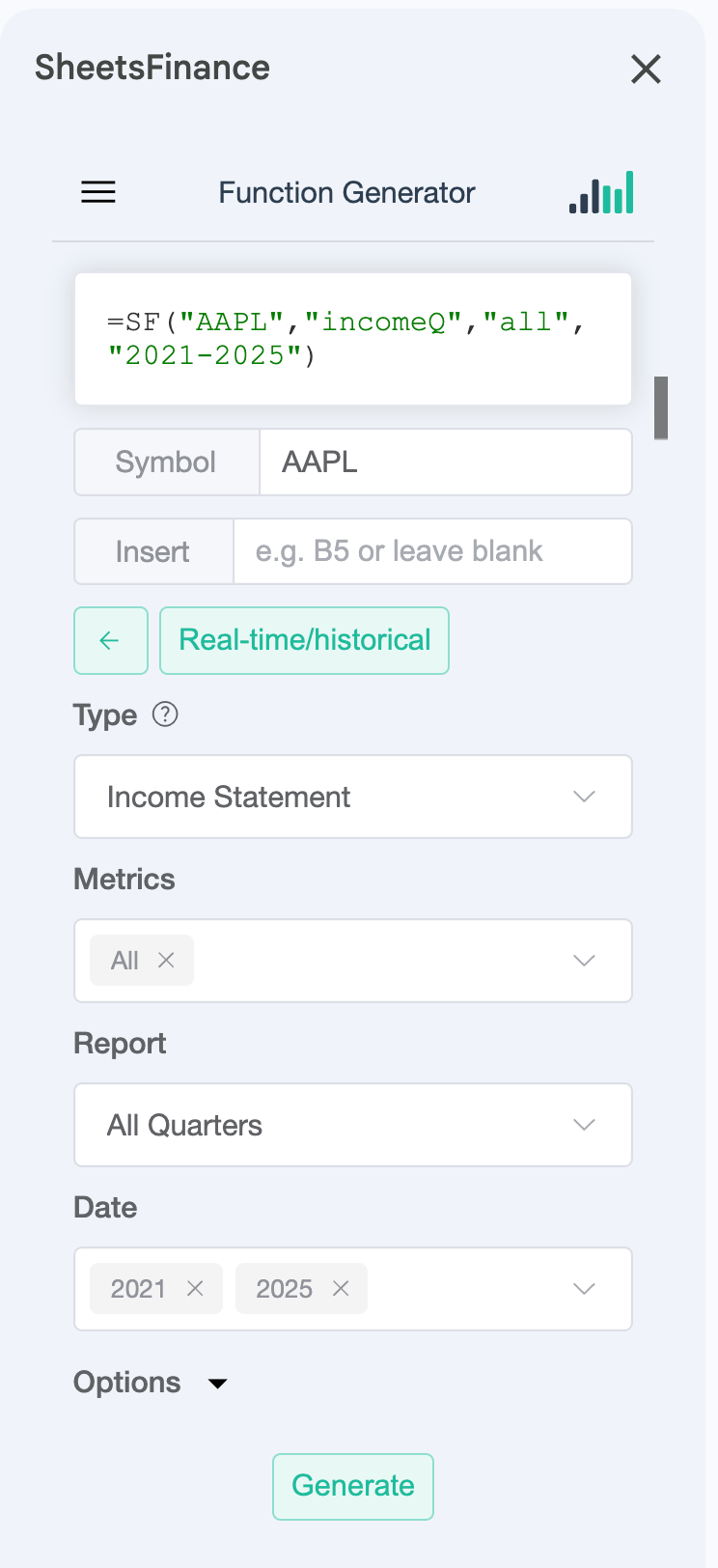
Hot Tip: The Function Generator will display the function you are building in real-time. You can use this to learn about how SheetsFinance functions are designed.
Where do I find the Function Generator?
Both the Function Generator and the Symbol Search can be opened via the Extensions dropdown menu in Google Sheets (Extensions > SheetsFinance > Function Generator), see the below image:
How to use the Function Generator?
Open the Function Generator from the 'Extensions' dropdown menu.
Enter either the stock you want to search (e.g.
"AAPL"), the cell containing the stock code (e.g.A1) or a range of cells if it's a batch function (e.g.A1:A21).
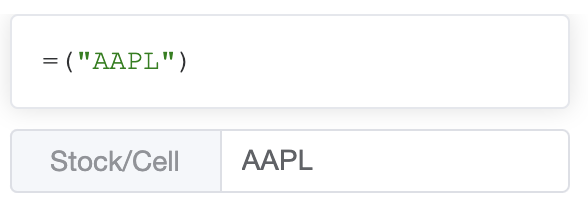
or
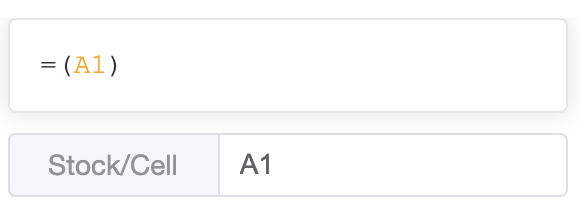
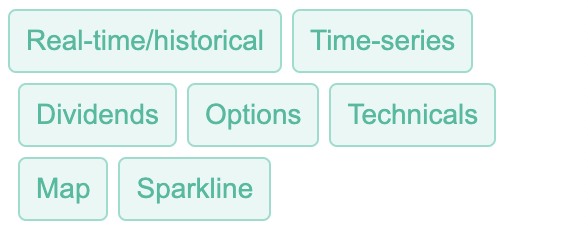
/Select the base function type. These represent all the Available Functions, for example, Real-time/historical data (
=SF()) or Dividends (=SF_DIVIDEND()).
Complete the rest of the input options depending on the data you are after. In this example we are after the real-time price change of
"AAPL"as a percentage.
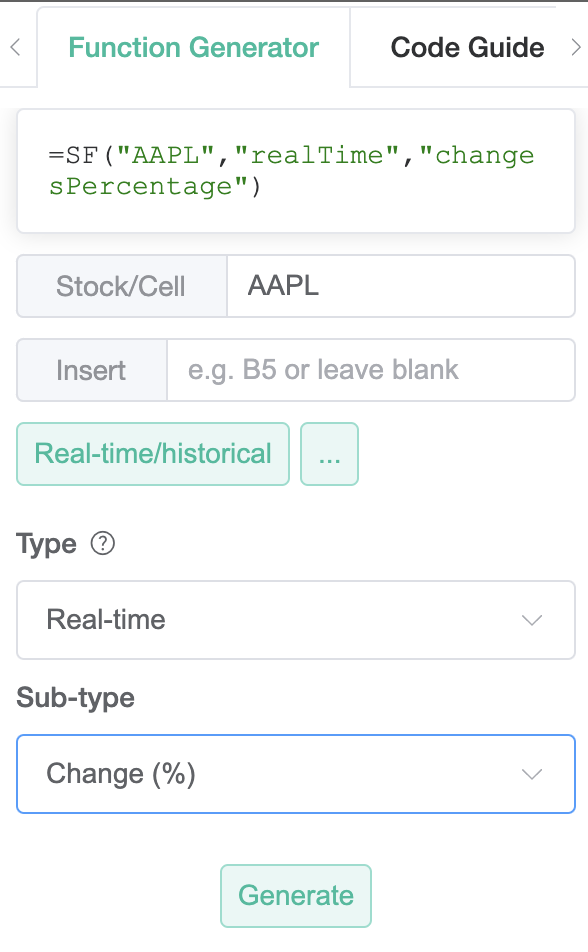
Click Generate and the function will populate whichever cell you are actively highlighting in Google Sheets. You can optionally specify which cell you'd like to insert the function into by writing it in the
Insertinput box.