
Build your first formula
Using SheetsFinance is as simple as entering the correct formula into a Google Sheets or Excel cell. You can either use our functions directly or use our super handy Function Generator to build the functions for you. Examples for both are shown below.
🔥 Hot Tip: If you're just getting started with the SheetsFinance add-on use the in-built Function Generator to make your life much easier. As you get to know our functions you can start directly entering them.
Direct Function
Important: Some regions use semi colons (;) instead of commas (,) as function separators. Our examples use commas.
Open up a new Google Sheet or Excel Workbook
Click on a cell
Enter the following:
=SF("AAPL","quote","price")Once loaded you should see Apple Inc.'s (AAPL) current price.
Even more simply you can do the following:
=SF("AAPL")This will also result in Apple Inc.'s (AAPL) current price as the default return of the SF() function is quote, which returns the current price of the stock, ETF, cryptocurrency or FOREX rate.
Use our Symbol Search to find the correct stock, ETF, FOREX or crypto code.
See Available Functions for details on all available functions.
See Performance Tips for tips on optimising your use of SheetsFinance functions.
Function Generator
Enter
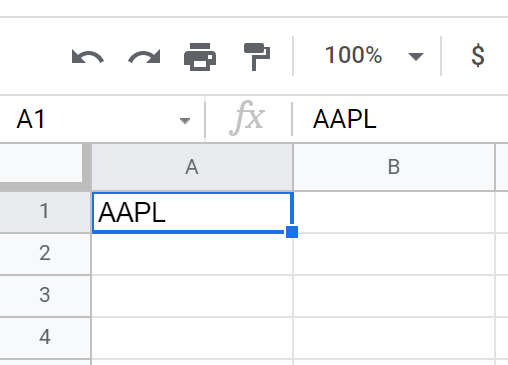
AAPLin cellA1.
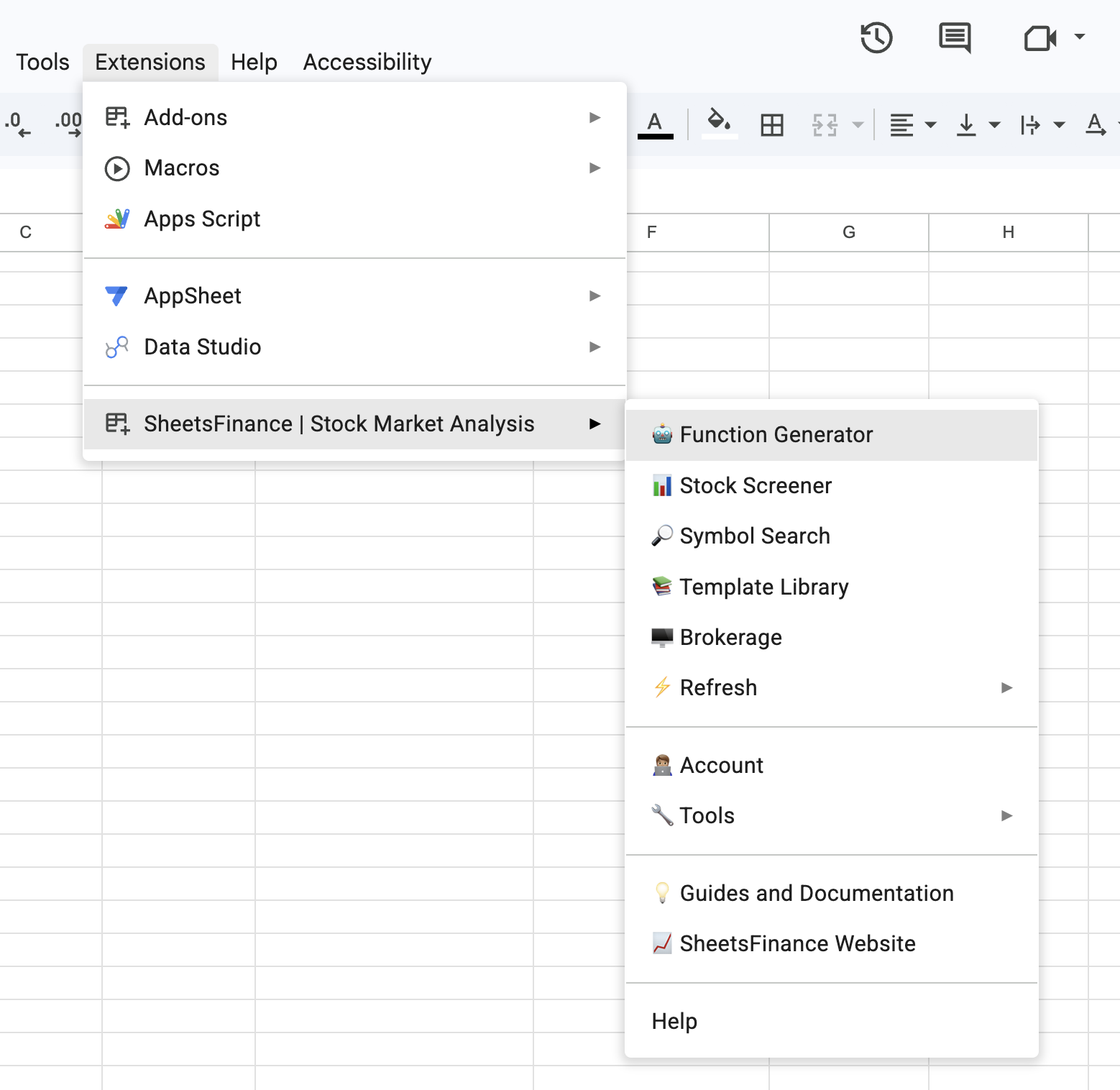
Open our Function Generator from the add-on drop down in Google Sheets or in Excel, click the main SheetsFinance logo in the ribbon menu.
Fill out the fields in the Function Generator like so:
Insert into Cell -
B1(Note: Leaving this blank is totally fine. The formula will instead be inserted into the currently selected cell in Google Sheets or Excel)Ticker Cell -
A1Select
Real-time/HistoricalType -
Real-timeMetrics -
Price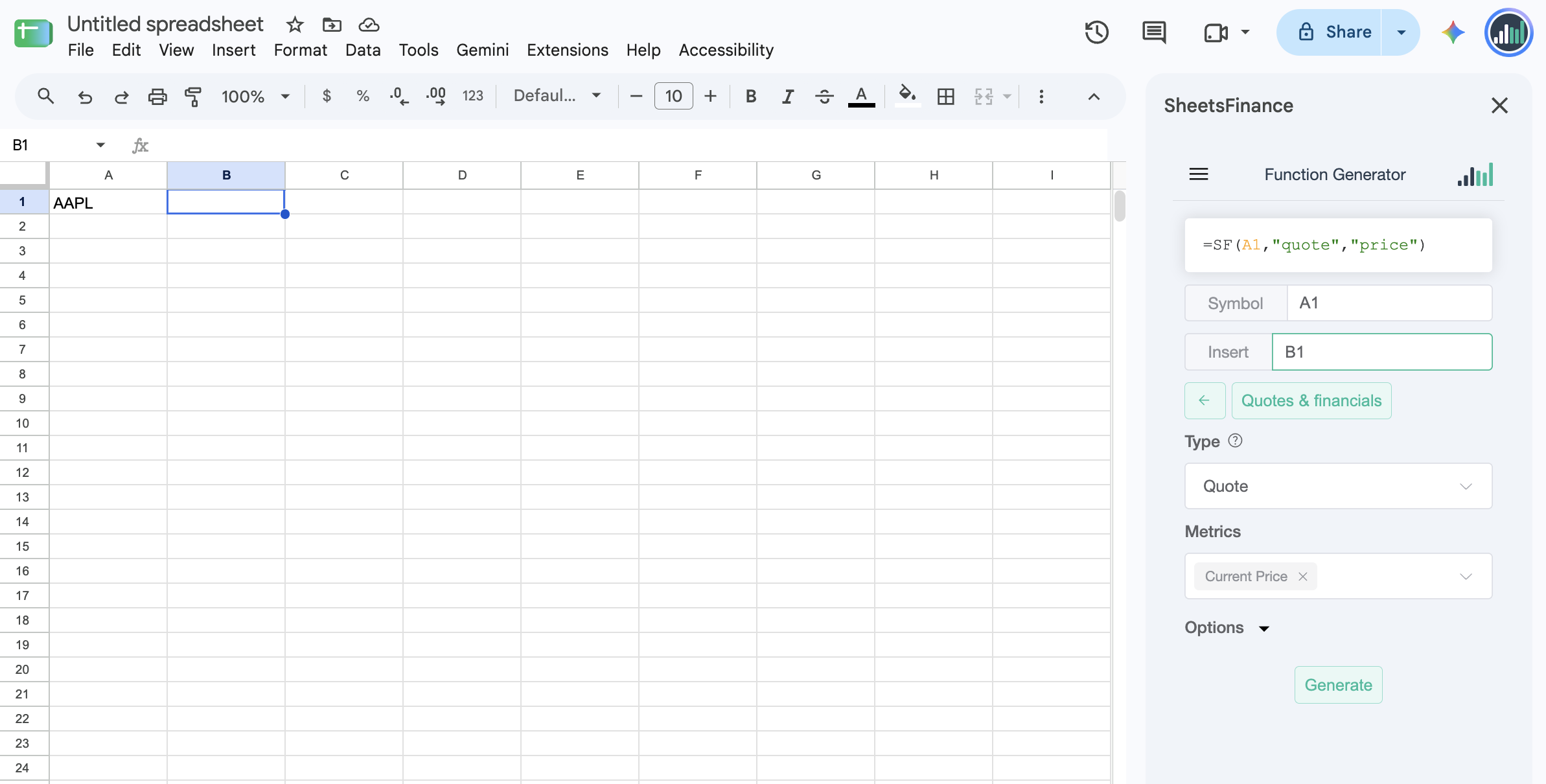
Click Generate
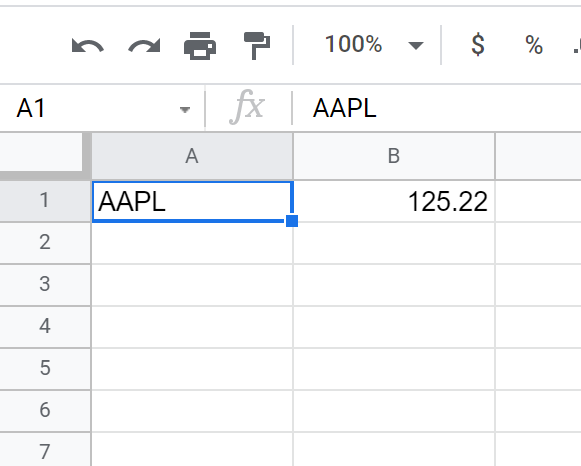
Once loaded you should see Apple Inc.'s (AAPL) current price in cell B1.
Now type
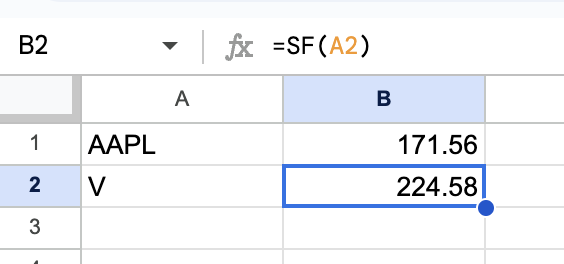
Vinto cellA2Drag down the function that was generated in
B1to coverB2
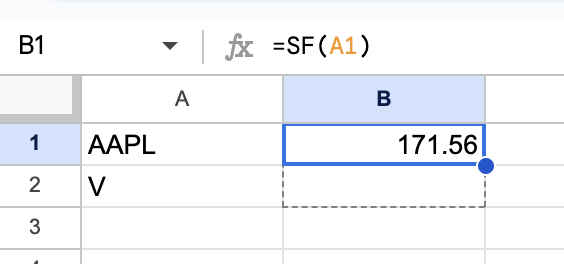
Once loaded you should see Visa Inc.'s (V) current price in cell B2
See Function Generator for detailed use.